4.2 Graphic templates
W ALERT:
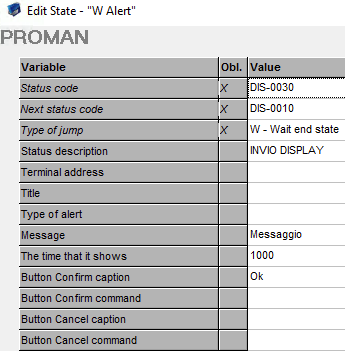
Template to show a graphic alert.
- Status code: Indicates automa state code on which the template you are inserting.
- Next status code: Is the next state that will be run by automa.
- Type of jump: Is the mode by which the automa switches from the state that we are entering to the next state (if it is type 'E' executes the current state and then goes immediately to the next state; if it is type 'W' executes the current state and then you wait for an input before you switch to the next state).
- Status description: Is a description to indicate the operation related to the current state.
- Terminal address.
- Title: Title alert
- Type of alert: You can insert -> success | error | warning | info.
- Message.
- The Time that it show.
- Button Confirm caption: Button text.
- Button Confirm command: Button command.
- Button Cancel caption: Button text.
- Button Cancel command: Button command.
W BUTTONS:
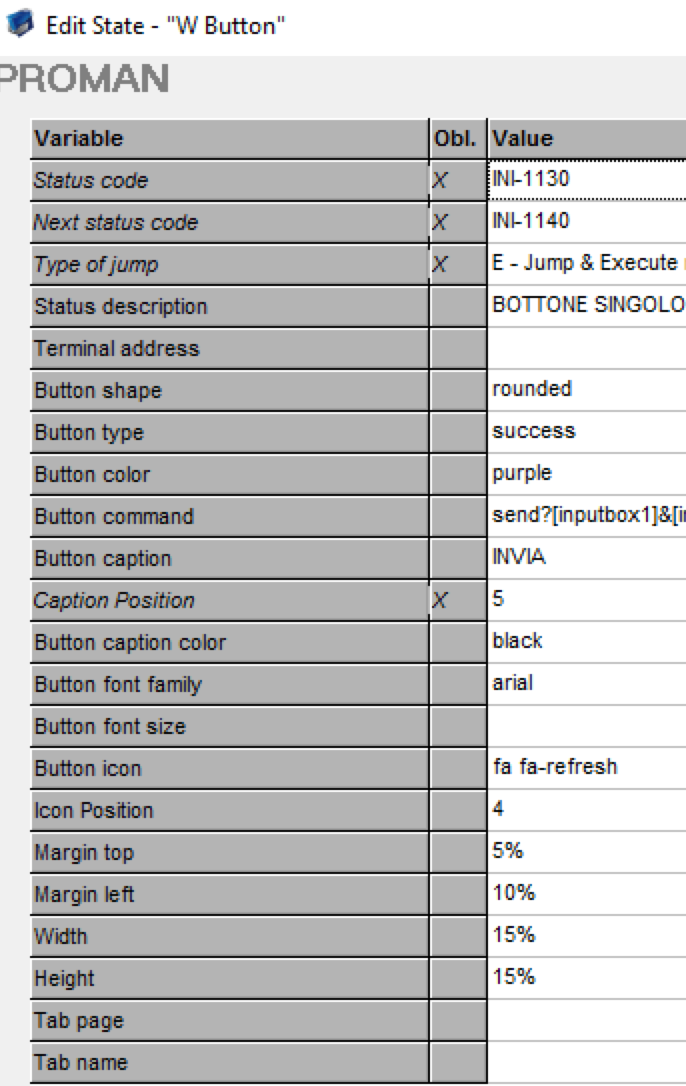
Template that allows us to create only one button.
- Button shape: You can choose between 3 types of buttons: square | circle | rounded
- Button type: Default | primary | success | info | warning | danger
- Button color: Button color, you can write like a color name (Yellow,red,etc..) or you can use also RGB code.
- Button command.
- Button Caption.
- Caption position: indicates caption position using the following schema:
1 |
2 |
3 |
4 |
5 |
6 |
7 |
8 |
9 |
so if we enter the value 1, the caption is placed in the top left,if we enter the value 2 is placed top and center,and so on.
- Button caption color.
- Button font family.
- Button font size.
- Button icon.
- Icon position: Indicates icon position as shown above for buttons position.
- Margin top
- Margin left
- Width
- Height
- Tab page: index tab.
- Tab name.
W BUTTONS SQL:
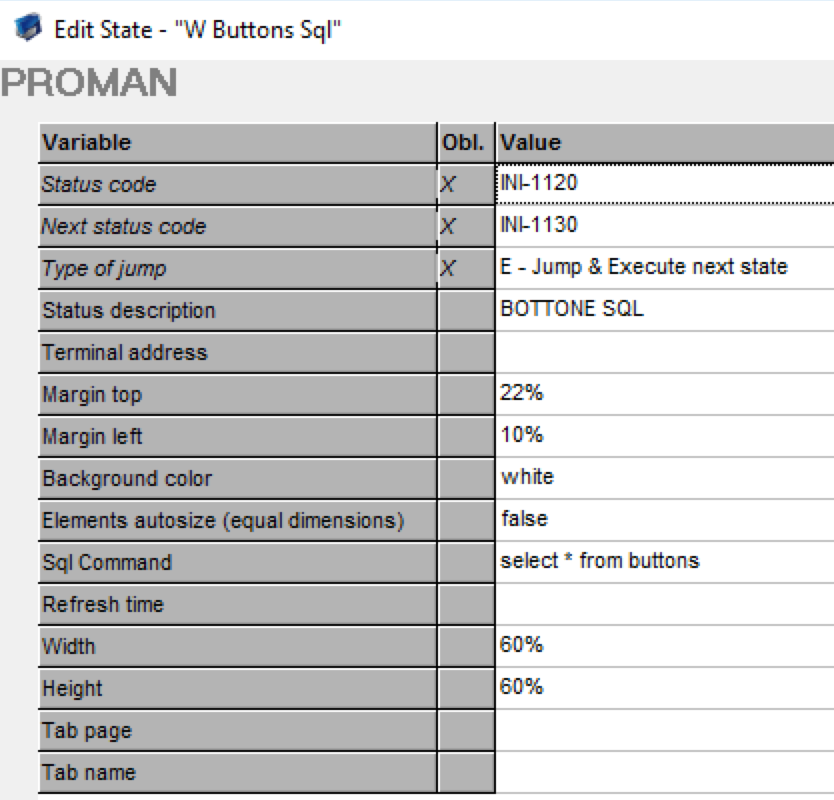
Template that allows us to set multiple buttons using a sql query that returns the fields that interest us like:Width,Height,Caption,Color,position ecc.
Sql Command: Calls a store procedure,function or select that will return the fields that interest us.
Refresh time: in ms.
W END CONTAINER:
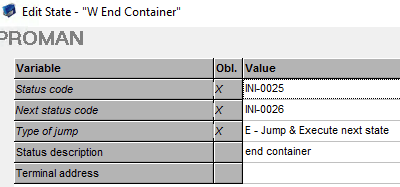
Template specifying the end of a page container.
W END DRAW:
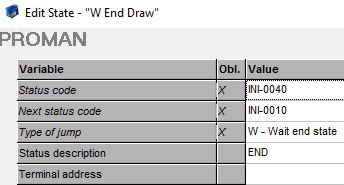
Template indicates the end of a graphic section.
W IMAGE:
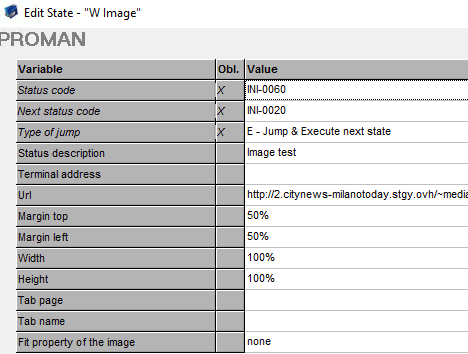
Template to insert an image.
- Url: Insert url of image.
- Fit property of the image: fill | contain | cover | none | scale-down
W INPUTBAR:
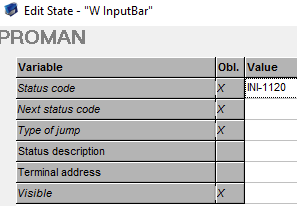
Template to able/disable a input bar.
1. Visible: Yes or No.
W LABEL:
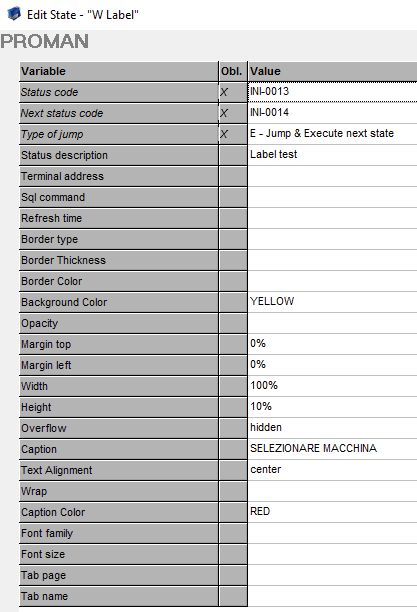
Template to insert a label.
Border type: none | dotted | dashed | solid
Border Thickness: Enter thickness in px.
Opacity: 0 or 1.
Overflow: visible | hidden | scroll
Text Alignment: left(Default) | center | right
Wrap: If we insert value "nowrap" force the caption to stand on a single line.
W INPUT BOX:
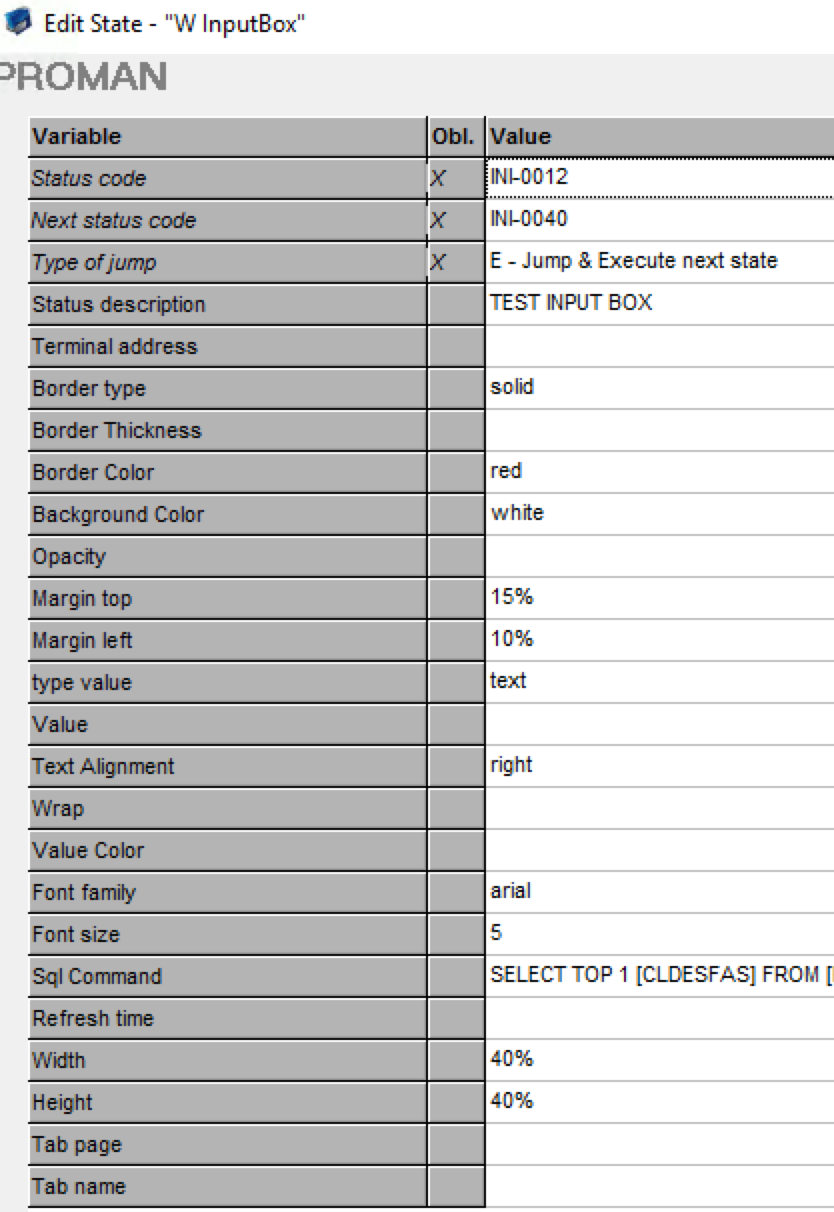
This template allows us to enter an input box on our page, fields are the same as those seen so far,except the following:
Type value: text(default) | number.
Value: The value entered in the inputbox,if we run a sql command,value should not be specified because it will be assigned the value returned by the query.
Value Color: color text of inputbox.
W NOTIFICATION:
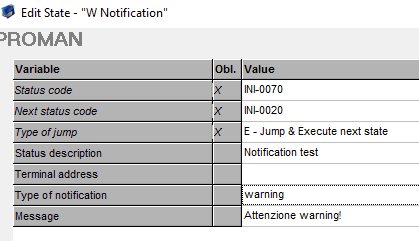
This template allows us to appear a notification at top right.
Type of notification: You can choose between:
- warning
- success
- error
- info
Message: Message to be displayed.
W PDFVIEWER:
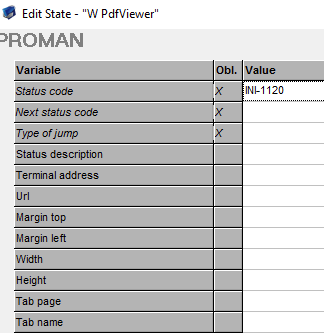
Template that allows us to open PDF file.
Url: Where to find the file.
W START CONTAINER:
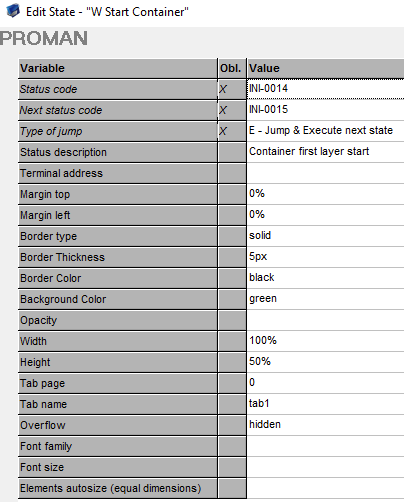
Template that allows us to specify the dimensions and characteristics of a container.
Tab page: number of container page
Tab name: Tab Name where to insert the page.
Overflow: visible(default) | hidden | scroll
W START DRAW:
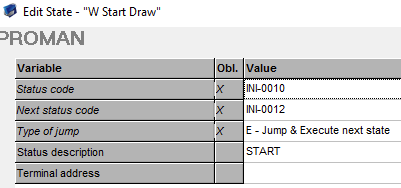
Template that serves when we start drawing the elements on our page.Finally,as we have seen above,we will use end - draw.We may also not specify the start and end,however,commands are processed correctly.If we specify it,we must remember that the system will only process commands between start draw and end draw.Be very careful so do not leave states out of these two templates.
W TABLE:
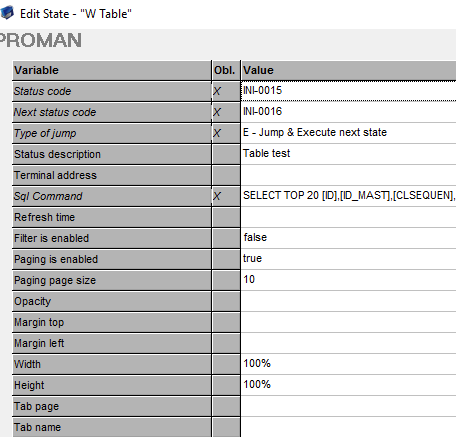
Template che ci consente di costruire una tabella eseguendo una semplice query sql.
W TABS:
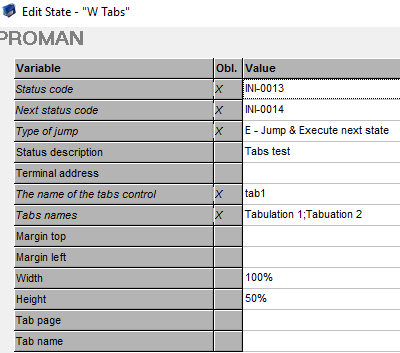
Template che ci consente di inserire delle tabs nella nostra pagina.
The name of the tabs control: identifica il nome della tab, da inserire nei template start container, in tab name.
Tabs names: Il nome che visualizzeremo sulle tabs.
Created with the Personal Edition of HelpNDoc: Easily create Help documents